
Control layout
Find the amount selector, BUILD and CASHOUT. Check whether a menu or banner covers any control on your phone.
Play & learn the controls
Launch the Galaxsys demo with virtual credits, without a deposit or a casino account. Learn the controls before committing money.
 By Alex SpencerIndependent game-analysis contributor and editorial reviewer
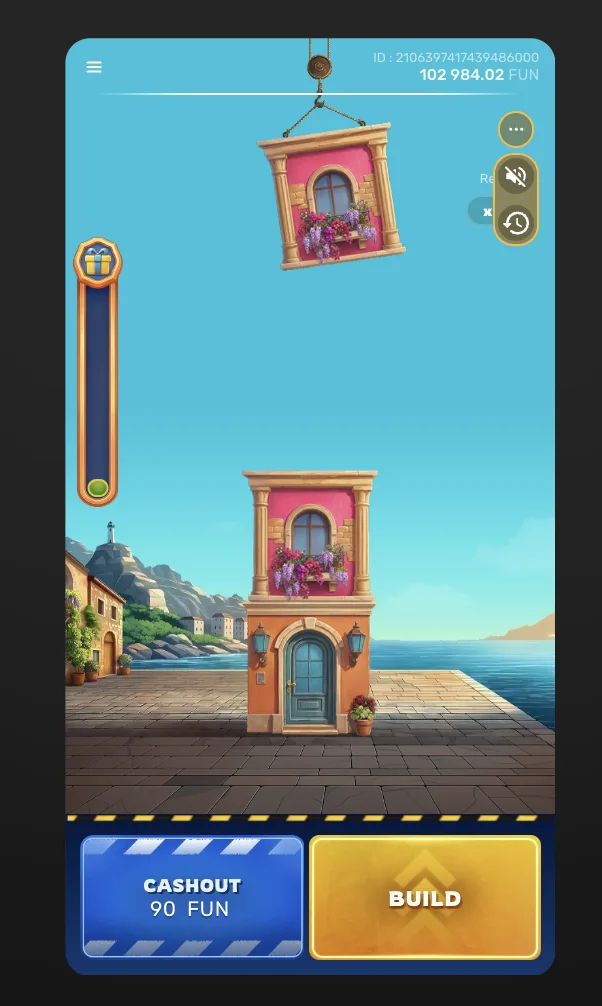
Open the Galaxsys client in a game window. You can use full screen or open it in a separate tab. No deposit is needed, and demo credits cannot be withdrawn.
Play free demo →The game loads from Galaxsys when you press Play. Closing the game window ends the embedded demo session.
Press Play free demo on this page. The provider’s game opens in a window; no casino account or payment details are needed for this demo.
Read the FUN balance and stake before pressing BUILD. Virtual credits cannot be withdrawn or exchanged for money.
On mobile, keep the controls in view. If the embedded window does not load, use its new-tab link; availability depends on the provider and your location.
Looking for an installer instead? Read the Android, iPhone and download guide before choosing an app.
This is a screenshot walkthrough, not an embedded game or a betting simulator. Choose a state to inspect the controls and result messages. The frames come from separate demo rounds; their amounts do not form one recorded session.
Read the state
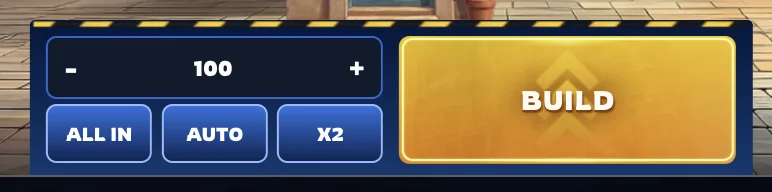
The pictured selector shows 100. That is a setting in this frame, not a required amount. Find the plus and minus controls, then distinguish BUILD from AUTO, X2 and ALL IN.
Buttons in this walkthrough only change the screenshot. They do not place bets or produce random outcomes.
Find the amount selector, BUILD and CASHOUT. Check whether a menu or banner covers any control on your phone.
Locate the help or information menu. Confirm the game title, units, limits and enabled features in that client.
Distinguish a live cashout offer from a completed result and the account balance. Read what the loss state replaces.
A demo is useful for orientation. It does not establish future real-money results, the reliability of an operator or whether a bonus promotion permits the game. The interface can look familiar while account conditions differ.
| Question | Demo or walkthrough | Real-money account |
|---|---|---|
| What is being displayed? | Virtual credits or captured states | Funds subject to the operator’s account rules |
| Can the displayed result be withdrawn? | No | Only subject to balance type, verification and withdrawal terms |
| Does this establish operator eligibility? | No | Check the operator’s rules for your location |
| What should be checked next? | Controls and the information menu | Game configuration, account limits and the full terms |
In the first state, identify the selected amount and which controls could change it.
Switch to Decision. Identify the 90 FUN CASHOUT offer and the separate BUILD control.
Switch to Collected. The green panel shows 83.3 FUN in another round; it is a displayed return, not proof of profit.
Switch to Loss. The red OOPS panel is not an invitation or obligation to pay for a continuation.
If you cannot explain the difference between those states, revisit the control guide. If a real client differs, use its current help screen instead of assuming the screenshot layout is universal.
The playable demo opens the provider’s client; game availability depends on Galaxsys and your location. The mobile-access page explains the difference between browser access and installing an operator application.
The demo linked here uses virtual FUN credits and needs neither a deposit nor a casino account. It opens the external Galaxsys client. Demo credits have no withdrawal value.
Press Play free demo to open the Galaxsys client with virtual credits. The controls guide below is a separate screenshot exercise.
No. Its four buttons change documented screenshot states. Use Play free demo for the playable game.
No. They are separate demo frames. The 90 FUN offer and the 83.3 FUN result should not be read as one sequence.
Virtual credits do not test funded-account verification, payment processing or withdrawal terms at an operator.
— Free-demo access instructions and mobile guidance clarified.